eBay Item Specifics Explained: What to Fill In and Why It Matters
What eBay item specifics are, how buyers filter by them, what Required, Recommended and Additional mean, and how to fill in Brand and MPN correctly.
Published Updated
Item specifics are the part of an eBay listing most sellers rush through. The title gets attention, the photos get attention, and then there is a long list of boxes, Brand, Model, Color, Size Type and dozens more, that look like paperwork.
They are not paperwork. They are how a large share of eBay buyers narrow down a search, and a listing that leaves them empty quietly drops out of those narrowed results. This guide covers what item specifics are, which ones you have to fill in, and the mistakes that cost the most.
What item specifics are
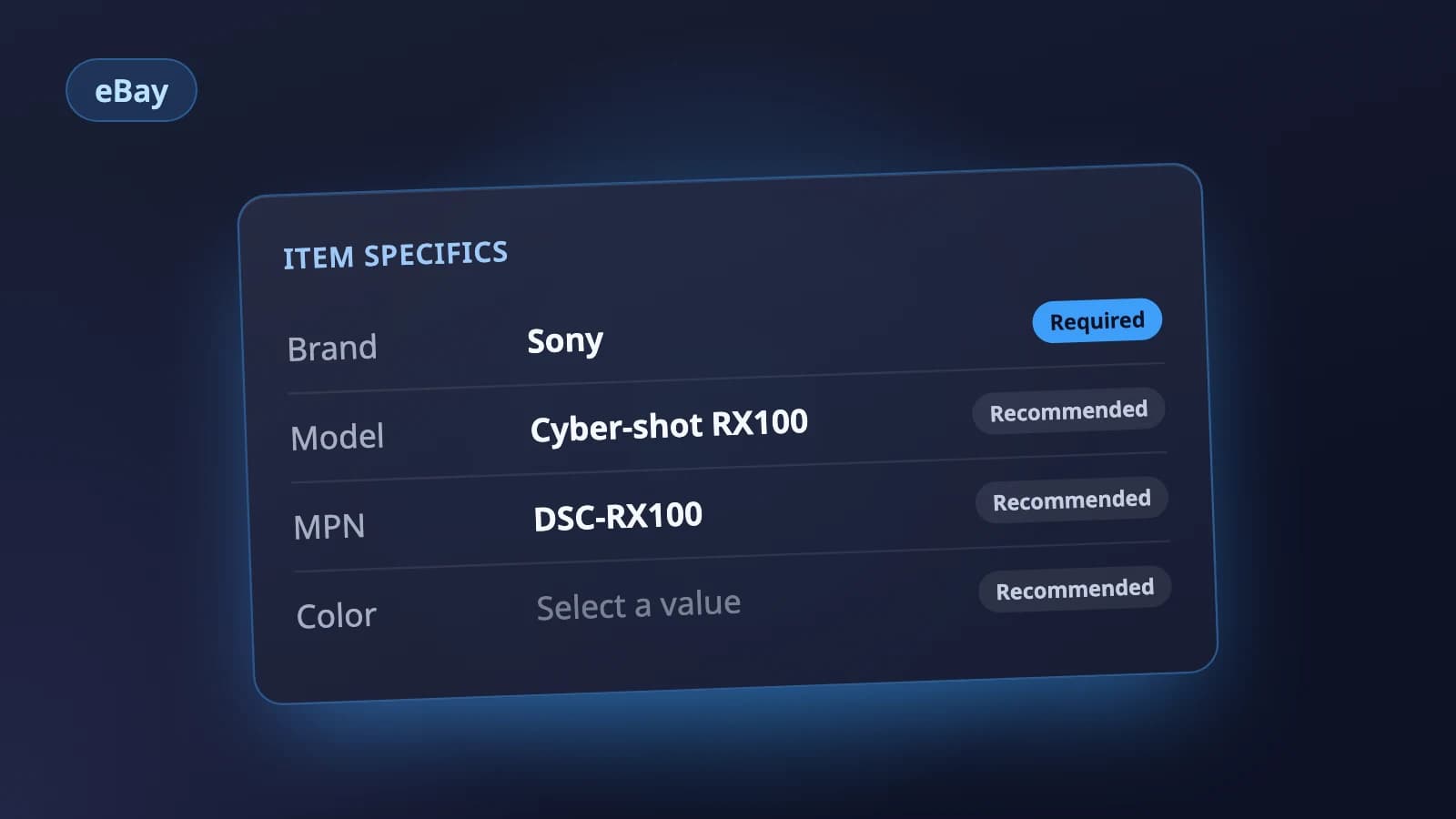
eBay describes them as "descriptive keywords that tell a buyer about your item." In practice they are name and value pairs, Brand: Sony, Model: Cyber-shot DSC-RX100, Color: Black, that sit in their own section of the listing, separate from your title and description.
The important difference from the description is that they are structured. eBay knows that Black is a color and Sony is a brand, which is what lets it build filters out of them.
Why buyers depend on them: filters
Search for almost anything on eBay and look at the left side of the results page (or the Filter button in the app). Brand, Size, Color, Condition, Model: every one of those filters is built from item specifics.
eBay's own item specifics guide puts it plainly: buyers use item specifics to filter their search results, and your item only appears in a filtered result if you added the matching item specific. If a buyer ticks Brand: Patagonia and your Patagonia jacket has no Brand value, your listing is not in what they see, however good the title is.
Required, Required Soon, Recommended and Additional
When you create a listing, eBay labels each item specific for your category:
- Required. You have to fill these in for any new or revised listing. They are the details eBay considers essential to identify the item.
- Required Soon. eBay periodically promotes fields to required, based on buyer search trends. These are the ones that will become mandatory; Seller Hub can show you which of your live listings are missing them.
- Recommended. Chosen, in eBay's words, from "buyer demand data and popular searches." Not mandatory, but these are the filters buyers actually use, and eBay suggests adding as many as you can.
- Additional. Optional extra detail. Useful when it answers a question a buyer would otherwise message you about.
The list depends on the category. A camera and a pair of jeans have almost nothing in common, so choose the category first: change it later and the item specifics list changes with it.
Brand and MPN: the two that go wrong most
Brand is the maker's name as it appears on the item. If the item genuinely has no brand, eBay accepts Unbranded.
MPN is the manufacturer part number, which eBay describes as a code "created by the product manufacturer." It is a code, not a name:
| Item | Good MPN | Not an MPN |
|---|---|---|
| Sony Cyber-shot RX100 camera | DSC-RX100, as printed on the box | Sony, which is the brand |
| A boxed fragrance | the code on the box, if there is one | the fragrance's name |
You will usually find the MPN on the box, on a label underneath or inside the item, or in the manufacturer's spec sheet. When the item truly has no part number (a handmade piece, an antique, an unbranded accessory), eBay's product identifier guide says to select Does not apply.
Use Does not apply and Unbranded only when they are true. They exist for items without the information, not as a way to skip a field you could have read off the label.
Three more common mistakes
- Guessing. If you are not sure of a value, check the item or the packaging rather than picking the closest option. A wrong value puts your listing in front of the wrong buyers and invites returns.
- Typing your own version of a fixed field. Many fields offer a list of values. Choose from the list where you can:
Blackmatches the Black filter,Jet black-ishmatches nothing. - Using item specifics as a keyword dump. Each value should describe this item. eBay's search manipulation policy covers adding keywords that do not relate to what you are selling, and that applies here as much as in the title.
A quick routine for every listing
- Pick the most specific category that fits.
- Fill in every Required field, from the item and its labels.
- Work through the Recommended list and fill in everything you can actually confirm.
- Check Brand and MPN against the label one more time.
- Leave a field empty rather than guess.
Where Holgo fits
Holgo's eBay listing AI follows the same routine. It looks the item up in eBay's live catalog to settle the category first, then fills in that category's own item specifics from your photos, required fields first, with each name spelled exactly the way eBay spells it. Brand and MPN are read off the labels where your photos show them, and anything the photos cannot settle is left empty for you rather than guessed. You can paste the result into eBay's form, or connect your eBay account and review it on one page before publishing.
Let Holgo write the first draft
Upload photos of an item and Holgo writes the title, description and the details eBay asks for. Free credits to start, no store connection and no card.